
Real-World Scenarios and Why This Matters
Upgrading to a new phone is exciting, but it often raises one important question: how do you transfer your eSIM to a new device? Unlike physical SIMs, eSIMs are tied to one device after activation and need a specific process for transfer.
Common issues users face:
▪︎ Expecting an old QR code to work on a new phone
▪︎ Thinking eSIMs are freely transferable (they’re not )
In this guide, we’ll walk you through how to reinstall your BNESIM eSIM on the same phone and how to transfer your eSIM to another device (with a €1 replacement fee). Let’s break it down.
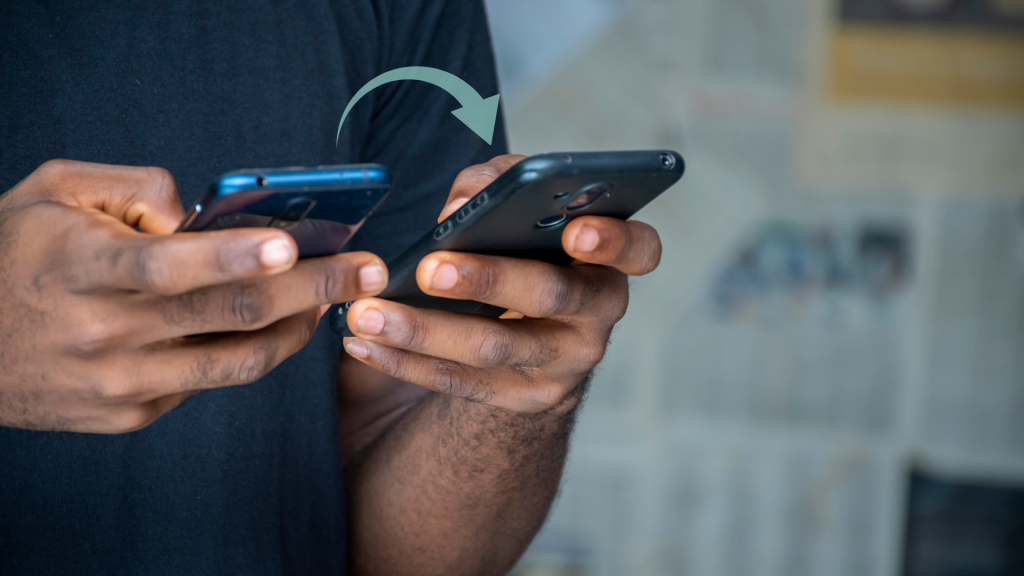
Can I Transfer My eSIM to Another Phone?
Yes, but with conditions.
Unlike physical SIM cards, eSIMs are digitally locked to a single device once activated. This means you can’t reuse the same QR code to activate it on a new phone. If you try, the activation will fail.
For BNESIM users, you can request a new QR code to transfer your eSIM to a different phone. This process involves:
✔︎ Verifying your account
✔︎ Paying a €1 replacement fee
✔︎ Installing the new eSIM using the QR code sent by BNESIM support
This extra security layer helps prevent eSIM theft or unauthorized sharing.
💡 Best Practice:
Install your new eSIM only after confirming it with support. If you’re planning to switch phones while traveling, request your replacement before departure.
How to Transfer My eSIM to a New Phone?
- Contact BNESIM Support at support@bnesim.com or in-app live chat requesting a replacement eSIM
- Provide your BNESIM account details and your current and new phone models
- BNESIM will confirm your request and send payment instructions.
- Pay the €1 replacement fee to receive a new QR code.
- On the new device: Go to Settings > Mobile Network > Add eSIM
- Scan the QR code and complete setup.
- Test your mobile data connection.
💡Reminder:
Check if your new phone supports eSIM before you transfer. You can check it with our updated eSIM compatible device list.
Troubleshooting Common eSIM Transfer Issues
Didn't Receive a New QR Code?
Check spam/junk email or contact BNESIM support again.
eSIM Not Activating on New Device?
▪︎ Restart your device.
▪︎ Make sure you have a stable internet connection during setup.
Accidentally Deleted eSIM on New Phone?
If you removed the eSIM from your phone’s settings, you can re-install it via BNESIM app.
⚠️ Important: If you deleted the eSIM directly from the BNESIM app, it cannot be restored, and you’ll need to purchase a new one.
FAQs
Can I reuse the same QR code on a new phone?
No. Each eSIM QR code is one-time use only and device-specific.
How long does it take to receive the new eSIM?
Usually within a few hours after support verifies your request and payment is completed.
Can I avoid the €1 transfer fee?
No. BNESIM applies a small service fee for every new device activation.
Does this work on both Android and iPhone?
Yes, you can contact BNESIM support for an eSIM transfer as long as your new phone is eSIM compatible.
Stay Connected with BNESIM
Transferring an eSIM isn’t hard—but it requires the right steps. BNESIM makes it affordable, simple, and secure. If you run into trouble, we’re just an email away.
📩 Need help? Contact support@bnesim.com
💡 Related Reads:
What Happens If I Delete eSIM on My Phone?

Kai Claide
A content creator with a love for the outdoors and pictures. A true beach person at heart, enjoys sunny coastlines, sipping matcha, and making the most out of every adventure. Curious and is always up for something fun.


 English
  Italiano